

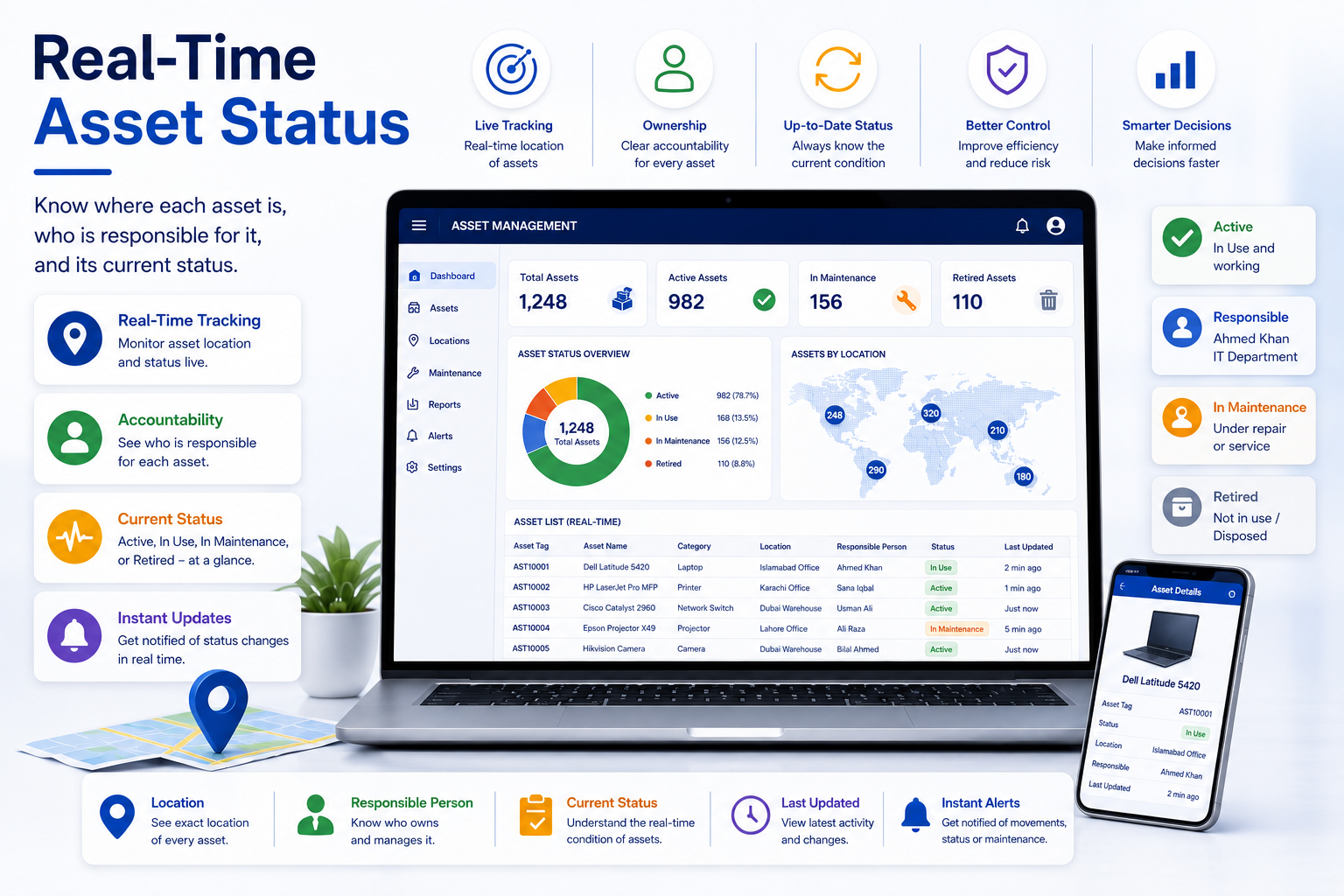


Dashboard
Notifications
Assets by Category
Asset Status
Assets by Location
Assets by Device Type
Verification Status
Maintenance Overview
Action Required
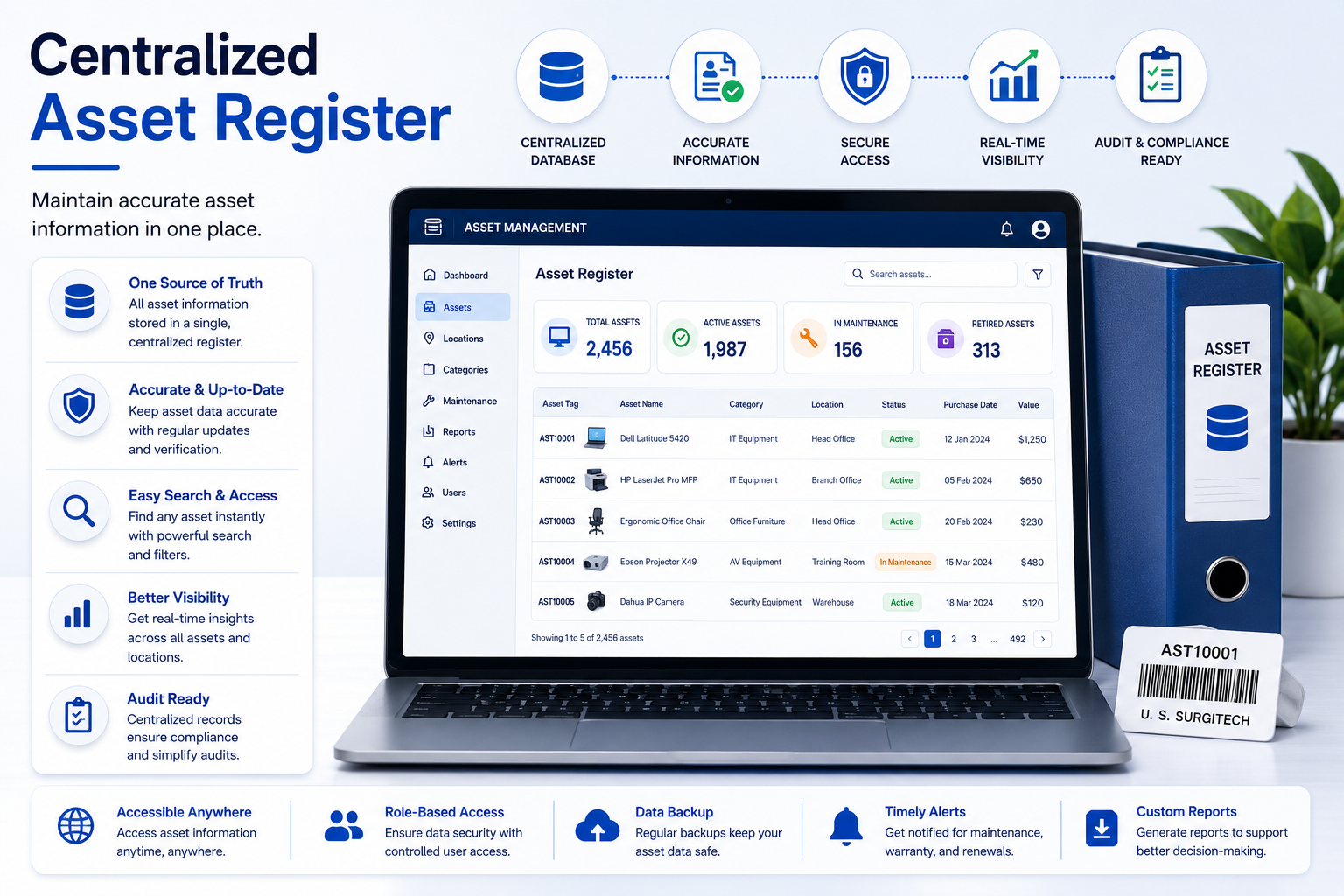
Asset Register
This module is part of the live navigation — connect it to your Firebase data source to bring it online.
Asset Register
Browse every asset as a flat list, or open the Categories tab for the full per-category workbook view.
Every asset in Firestore, live. — click a column header, row number, or cell to select it (like Excel); drag column/row edges to resize.
| # | NAME↕ ▾ | ASSET ID↕ ▾ | CATEGORY↕ ▾ | STATUS↕ ▾ | LOCATION↕ ▾ | COST↕ ▾ | VERIFICATION↕ ▾ | ACTIONS |
|---|
No assets match your search.
Every field for the selected category, laid out like the source register — one tab per category. Click a column header, row number, or single cell to select it (like Excel); drag column/row edges to resize.
Add Asset
Asset Details
Details
Add Category
Every category automatically includes Name, Status, Location, Purchase Cost, Book Value, and Verification — just add the fields specific to this asset type below.
Edit User Profile
Reports
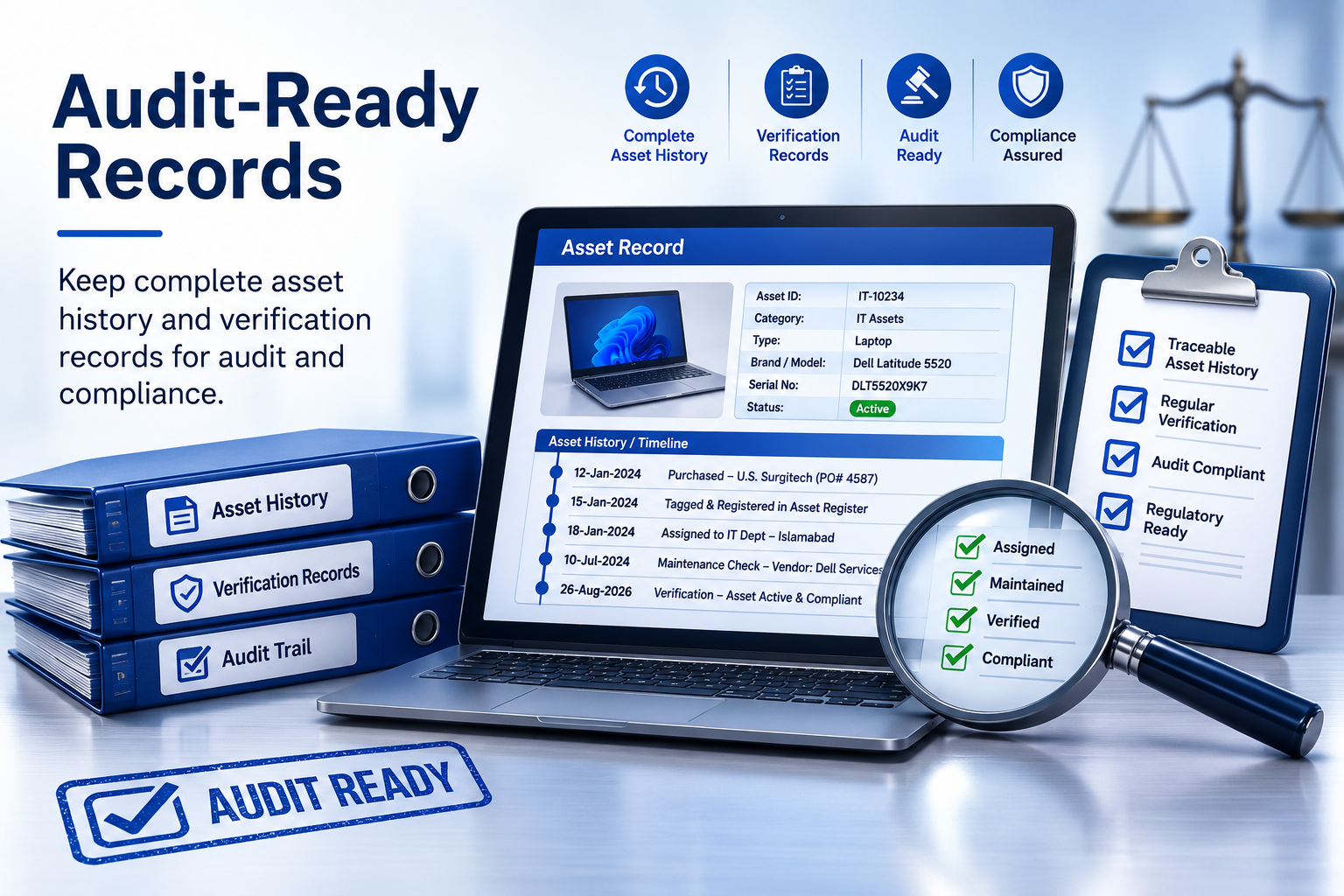
Two separate records: what changed, and who signed in.
Every add, edit, and delete action on an asset — who did it, and when.
| WHEN | WHO | ACTION | DETAILS |
|---|
No activity recorded yet.
Every sign-in and sign-out — kept completely separate from the Activity Log above. This is who accessed the app and when, not what they did once inside.
| TIMESTAMP | USER | ACTION |
|---|
No sign-ins recorded yet.
Vendor Management
Built automatically from the Vendor/Supplier Name entered on each asset in the Register — devices bought is a live count, not a manual number. Add optional contact details for any vendor below.
No vendor names found yet — they'll appear here once assets have a Vendor/Supplier Name filled in.
Settings
App-wide preferences — these apply for every user, everywhere the app shows a currency, a date, or the company name and logo.
Used everywhere a cost or value is shown — Asset Register, Categories, and dashboard totals.
Small image works best (under ~200KB) — it's stored directly in the database.
This is what visitors see when they open the Privacy Policy / Terms of Use links on the sign-in screen. Leave a box empty to show a blank page for that link until you're ready to publish the text.
Changes here are published when you click "Save Settings" below.
Administration
The dashboard reads live from Firestore's assets collection. Use this to seed realistic test records, or clear them out and start over. Both actions apply to the whole team's data instantly.
Users & Roles
Add teammates, change their access level, or revoke access — no need to open Firebase.
Note: "Revoke" and "Delete" both fully block someone from using the app. Delete also removes their row from this list. Neither one deletes their Firebase login itself — that step still requires the Firebase Console. "Reset Password" emails the user a link to set a new password themselves; there's no way for an Admin to type in a new password on someone else's behalf.
To hand off Admin (e.g. the admin is leaving): while still signed in as the current Admin, set the successor's role to Admin below. You can't change your own role, so once they're Admin, have them sign in and revoke or delete your account.